This is a support webpage for Purchased Services clients using the Grandview Kids Client and Family Portal (Portal).
Click on the menus below to access step-by-step instructions below to learn:
- How to view invoices and make payments for Purchased Services in the Portal, and
- How to view your documents in the Portal
How to view invoices and make payments for Purchased Services in the Portal
To view and pay an invoice, follow these steps:
- In the Portal, click the Records tab.
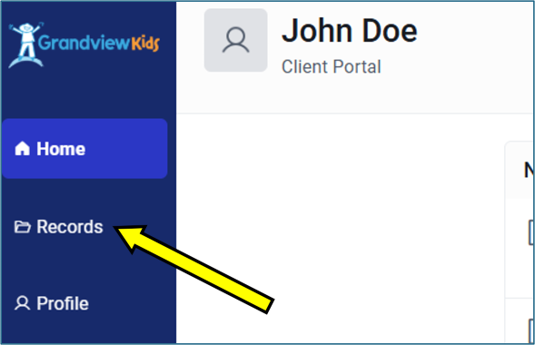
- Click Invoices.
- From the client’s list of invoices, click on the invoice you want to view.
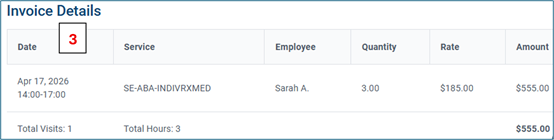
The invoice can also be viewed by doing either of the following:
OR
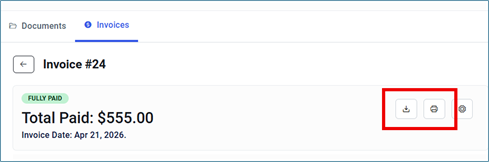
- Click the print button to print the invoice on paper[AP3] .
- Once you have viewed the invoice details and are ready to pay, click the “Pay now” button.
- Note: This button will only be available for invoices that have a remaining balance. The button will be disabled for invoices that have a balance of $0.
- You can now select your desired payment method and/or adjust the payment amount. Any saved payment method will be automatically available in the pop-up window. To pay with a credit card, enter the required fields in the pop-up window (see screenshot below). We accept Visa, MasterCard and American Express.
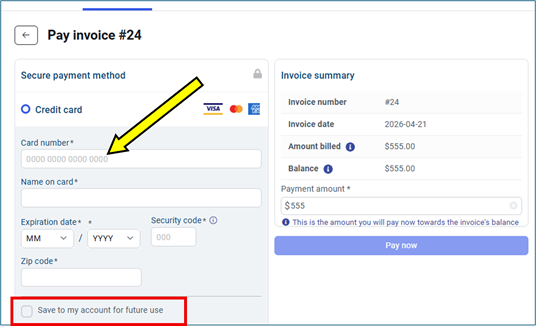
- When you check off “Save to my account for future use,” you can make future payments using the same credit card within the Family Portal without having to re-enter the details.
- Once you have chosen a payment method, you can adjust the payment amount of every transaction to customize the amount you wish to pay towards the invoice. By default, the payment amount is the invoice’s current balance. You will not be able to enter an amount greater than the invoice balance. Click “Pay now” to confirm payment.
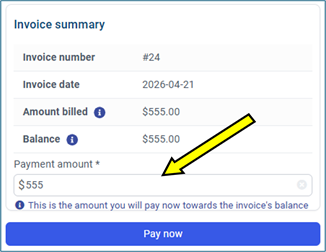
- Review payment details and select “Confirm” to proceed with payment or select “Back” to cancel the transaction. Once confirmed, the system will process your payment.
- An automatic confirmation of payment email will be sent to your email address on file once the payment is processed. Note: This is not the receipt that can be submitted to AccessOAP.
After a payment has been made, an invoice receipt that can be submitted to AccessOAP will be available to download/print within two business days. The invoice receipt will replace the original invoice file that is available in the Portal.
The invoice receipt can be viewed by doing either of the following:
OR
- Click the print button to print the invoice receipt on paper.
How to view your documents in the Portal
Questions?
If you have questions about how to use the Portal as a Purchased Services client, email PurchasedServices@grandviewkids.ca.