The Grandview Kids Client and Family Portal (Portal) gives clients and families access to specific parts of the client health record at Grandview Kids. This means our clients and families can view their personal health information and manage payments for Purchased Services (if applicable) online.
This webpage shows new Portal users how to navigate the Portal and use their new account.
This webpage is for existing Portal users
If you don’t have a Portal account yet, please visit our main Client and Family Portal webpage to learn more about the Portal and how to request an account.
If you are a Purchased Services client, please visit our Portal support for Purchased Services clients webpage for support with making payments on the Portal.
Navigating the Portal
Below are details on every page you will use on the Portal, along with screenshots to make navigation easier.
Navigating to the Portal
Visit https://grandviewkids.alayacare.ca/familyportal to log into the Portal and access your account.
Consider bookmarking this link to ensure you can find it easily on your browser.
The pages you can access on the Portal
You have access to the following pages on the Portal:
- Home
- Records
- Profile
- Settings
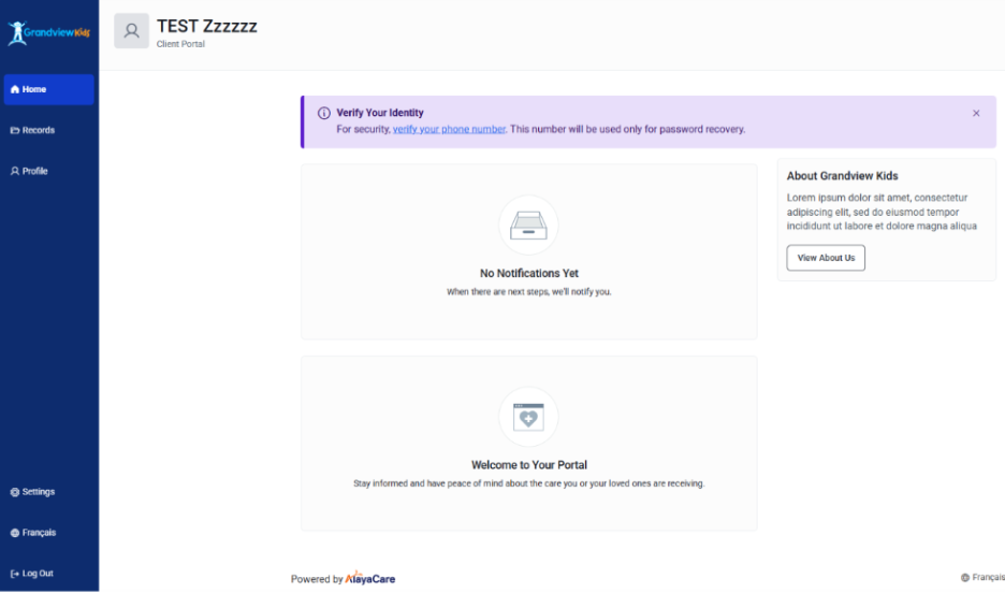
You can access all of these pages from the blue Navigation Bar on the left side of your Portal account (see screenshot below). To learn more about each of these pages, click on the drop-down menus below.
Navigating the Homepage
When you log into your Portal account, you will automatically see the homepage.
The homepage shows you your notifications and information related to the care provided to the client.
Navigating the Records page
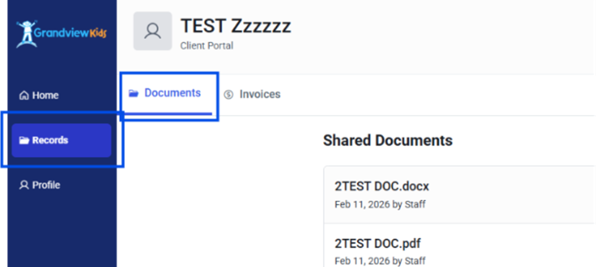
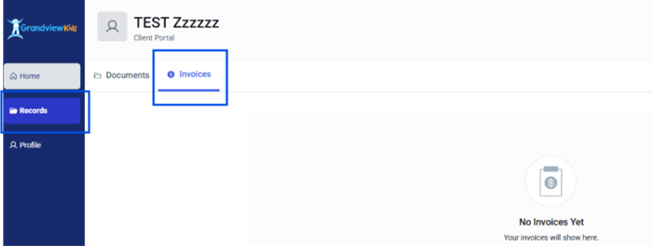
From the Portal homepage, click the “Records” button in the Navigation Bar.
The Records page gives you access to your or your child’s health information (assessments, re-assessments, diagnostic reports, etc.) and invoices (if you access Purchased Services).
Navigating the Profile page
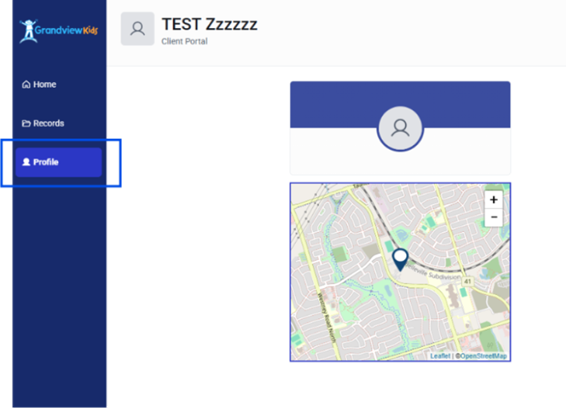
From the Portal homepage, click the “Profile” button in the Navigation Bar.
The Profile page gives you access to basic client information, including their name and address.
Navigating the Settings page
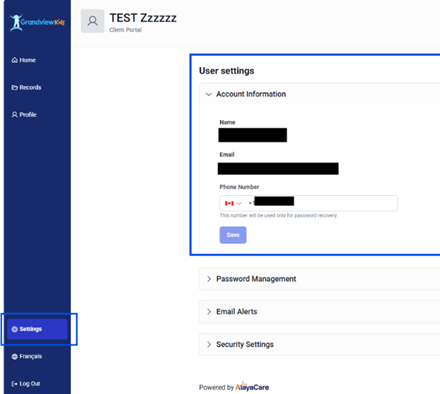
From the Portal homepage, click the “Settings” button near the bottom of the Navigation Bar.
The Settings page lets you edit certain account details and manage your password, notification preferences and security settings.
Useful tips
Below are tips to help you use, update and optimize your Portal account.
Updating the phone number attached to your Portal account
From the Portal homepage, click the “Settings” button near the bottom of the Navigation Bar and select “User settings.”
Type your new phone number in the “Phone Number” field and click “Save” to update your phone number.
Resetting your Portal account password
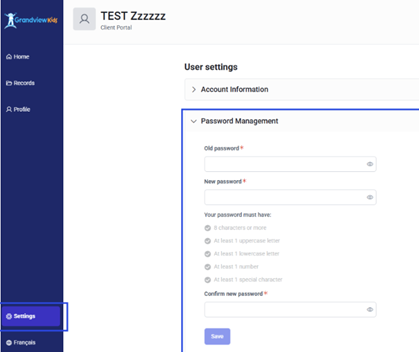
From the Portal homepage, click the “Settings” button near the bottom of the Navigation Bar and select “Password Management.”
Type your old password, then type your new password twice to confirm it and click “Save” to update your password.
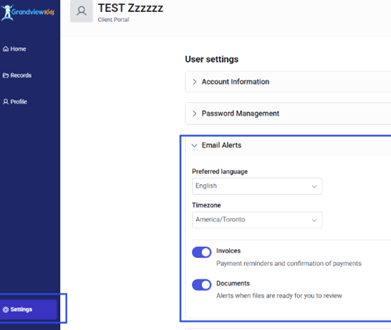
Turning on email notifications for new documents or invoices
The Portal enables users to receive email notifications for new documents or invoices/payments (for Purchased Services clients).
To turn on email notifications, click the “Settings” button near the bottom of the Navigation Bar and select “Email Alerts.”
Click the toggle beside “Invoices” to receive payment reminders and confirmation of payments (applicable for Purchased Services clients).
Click the toggle beside “Documents” to be notified when a file is ready for you to view.
Logging out of the Portal
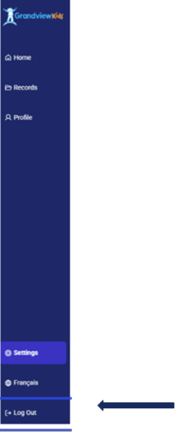
When you are ready to end your Portal session, click the “Log Out” button near the bottom of the Navigation Bar.
Contact us
Email ClientFamilyPortalSupport@grandviewkids.ca if you need further help using the Portal.